 How to Configure your Attendants:
How to access the Attendants Maintenance screen:Click the icon on the left for the Full Menu.
 OR
OR 
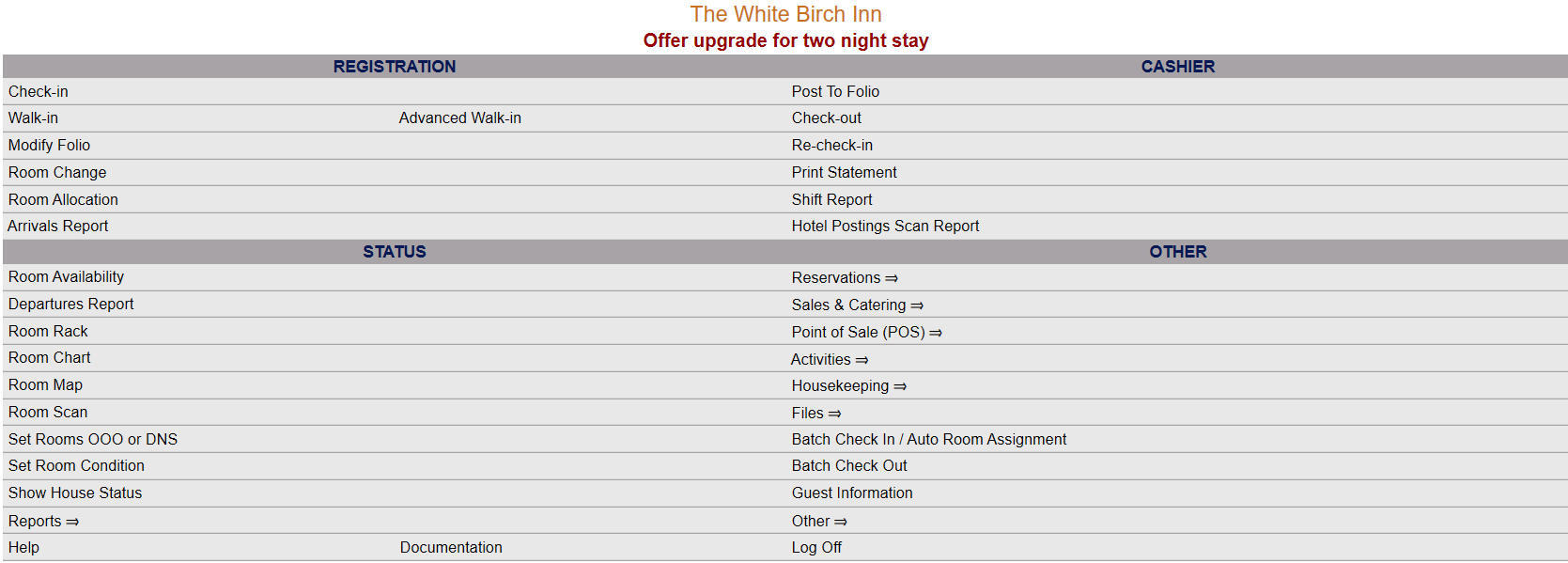
This will display the Full menu in a tabular form, with four sections, Registration, Status, Cashier and Other.
 OR
OR 
Select Other from the Other section.
 OR
OR 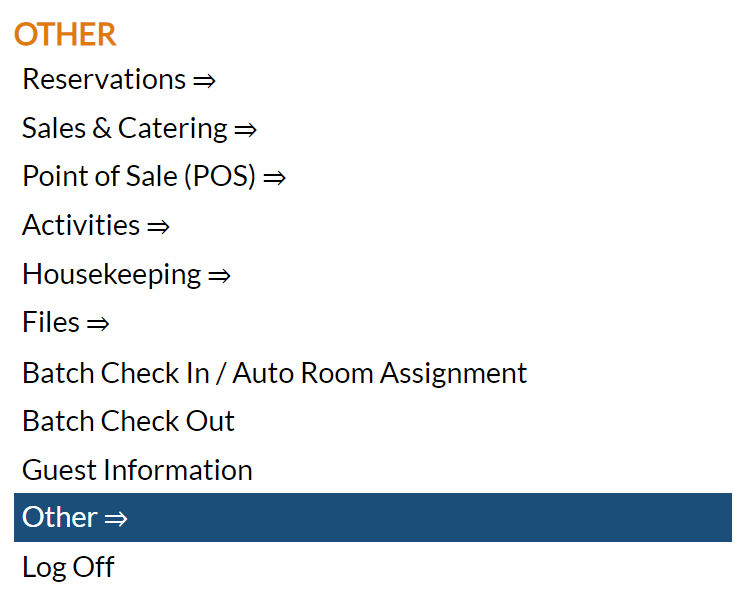
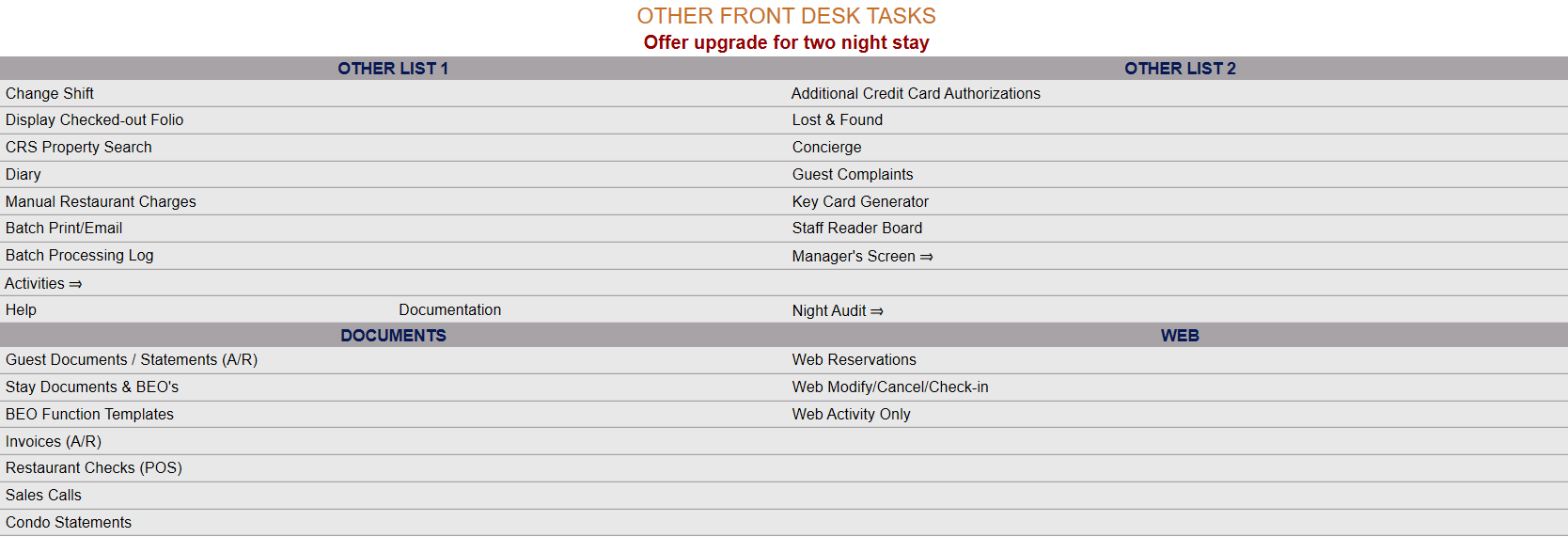
This will take you to the Other Front Desk Tasks Menu, which has four sections, Other List 1, Other List 2, Documents and Web.
 OR
OR 
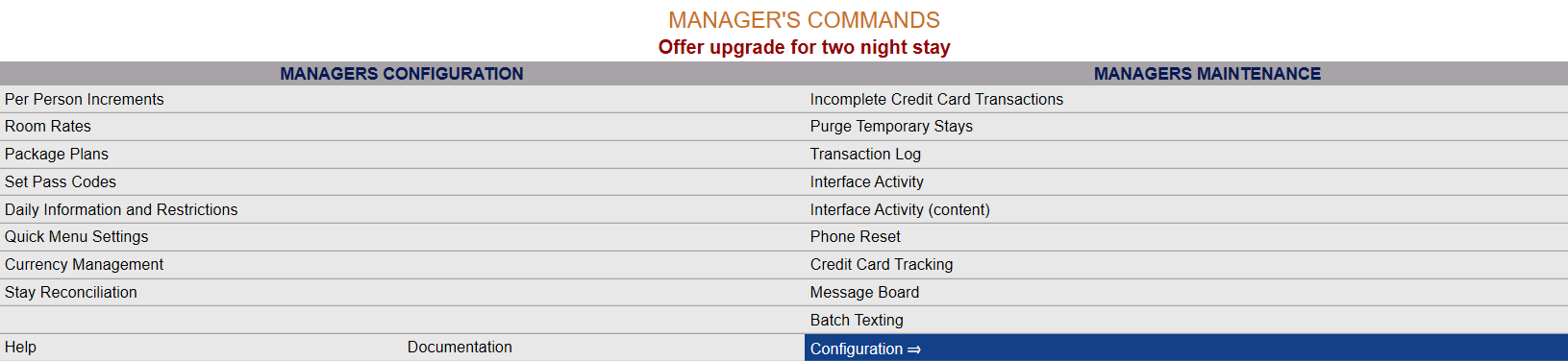
Select Manager's Screen to be taken to the Manager's Commands Menu.
 OR
OR 
OR:
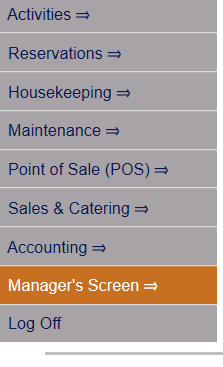
Select Manager's Screen from the Quick Menu on the left side of the screen, to be taken to the Manager's Commands Menu.
 OR
OR 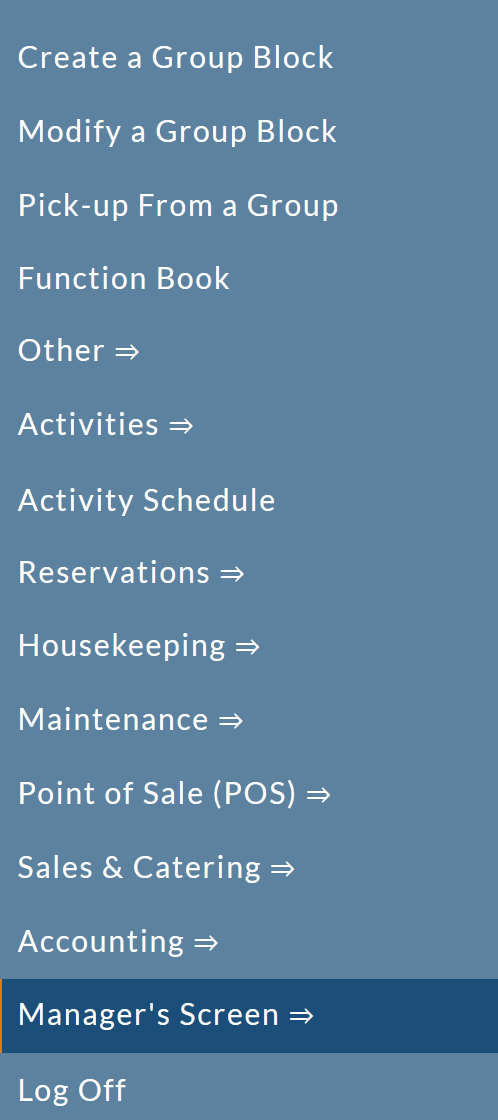
Select Configuration to be taken to the Property and Configuration Menu screen.
 OR
OR 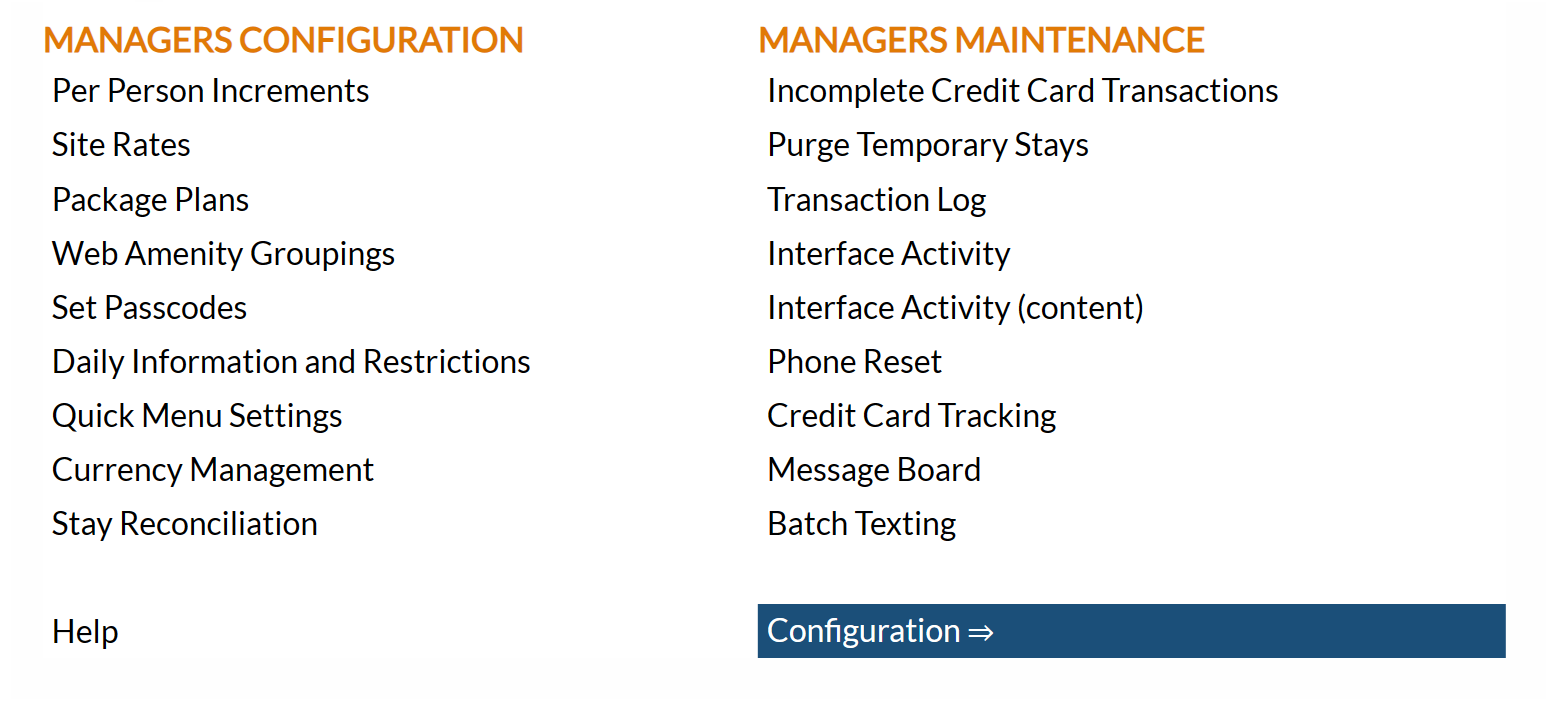
Alternately, you may also be able to select Configuration directly from the Quick Menu, if the menu has been set up to include the Configuration option.
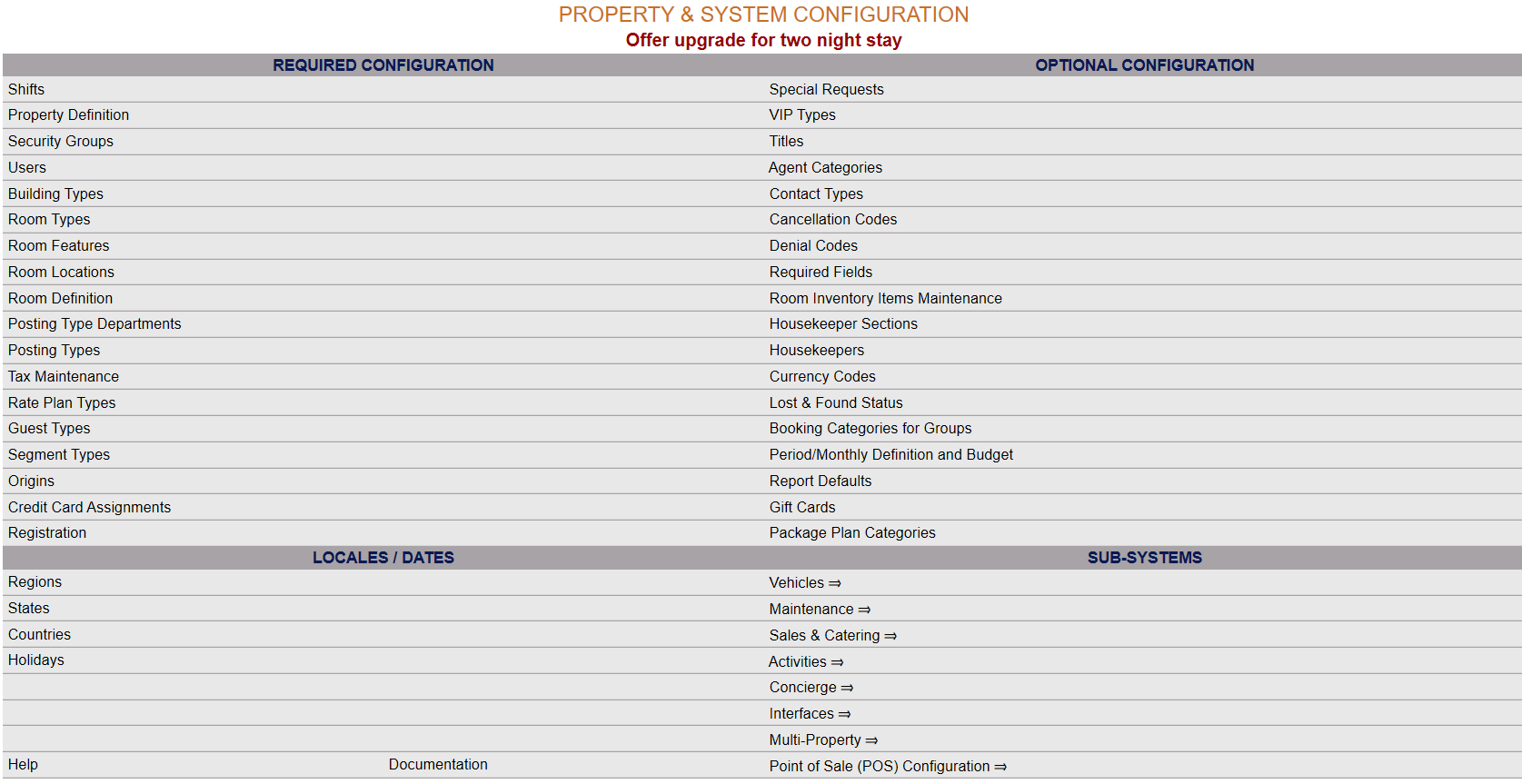
This will take you to The Property and Configuration Menu screen.
 OR
OR 
The list of property configuration options are divided into four sections, which are Required Configuration, Optional Configuration, Locales/Dates and Sub-Systems.
Select Activities Configuration => from the Sub-Systems section.
 OR
OR 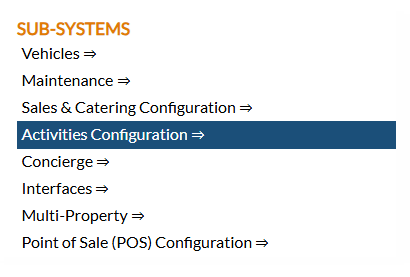
This will open the Activities Configuration Menu.
 OR
OR 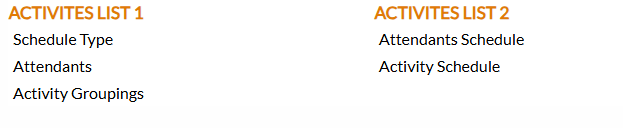
The Activities Configuration Menu has two sections, Activities List 1 and Activities List 2.
Select Attendants from the Activities List 1 section.
 OR
OR 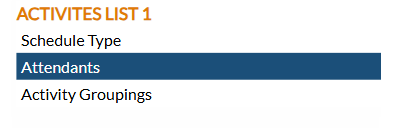
When opened, the Attendants Maintenance screen display is split into two frames, with the left side of the screen listing any already configured attendants for the Property and the right side containing the fields you need to complete in order to add or edit an Attendant for your Property. Any changes made on the right, once saved, will be updated in the listings to the left. (Please note, the details for any attendants entered into Skyware will also appear on the Users screen, but new attendants should be added using this screen).
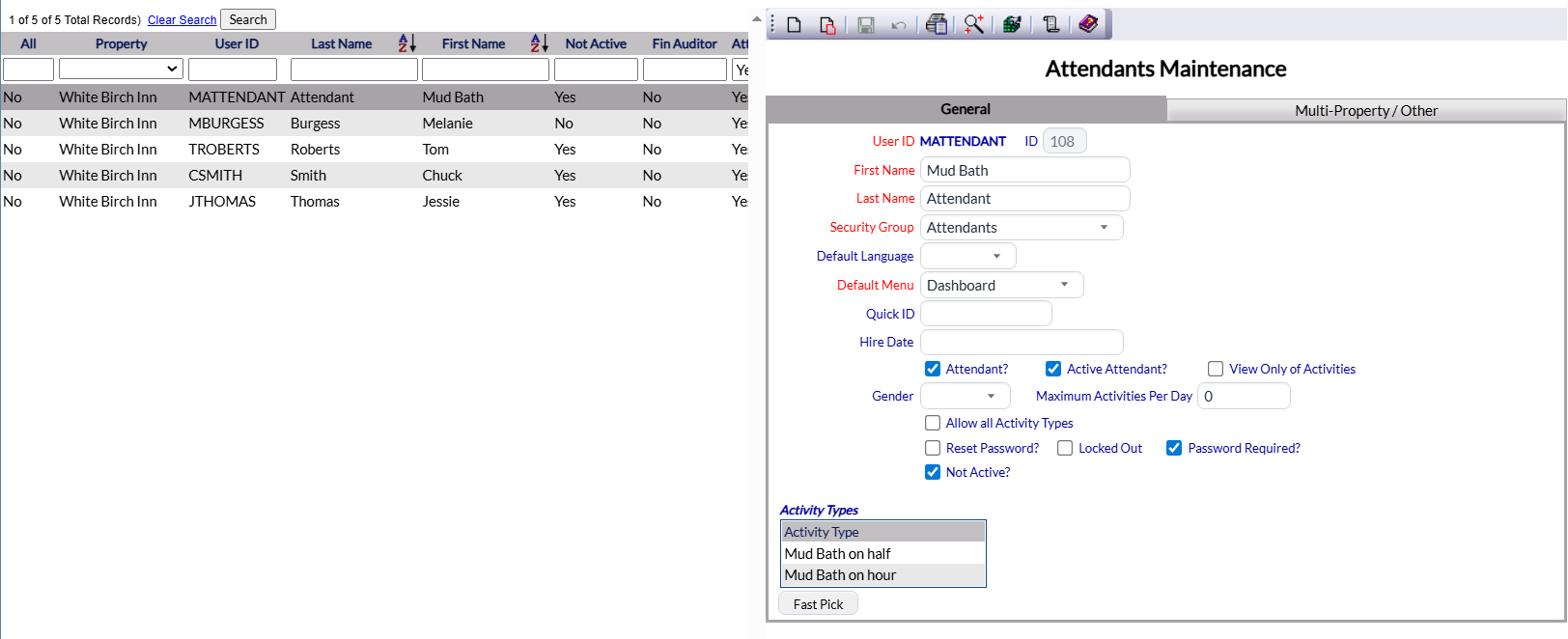
The currently configured attendants are displayed by:
All: Does the attendant have access to all Properties? If the check box on the Multi-Property / Other tab checked, this will be Yes. Otherwise, No.
Note: In general, attendants are associated with a specific Property.
Property: The Property selected that the attendant is associated with.
User ID: The User's Identification.
Last Name: The last name of the attendant.
First Name: The first name of the attendant.
Not Active: Yes or No. If this is marked Yes the User is not active in Skyware (for example, may have left the Property employment). Not Active User accounts are deactivated, and therefore cannot log in to Skyware, but their profile remains for auditing purposes.
Note: Attendants have recently been added to Skyware as Users. Previously entered attendants were marked as Not Active so they cannot log in by default. Remove the check mark from the "Not Active" box to allow the attendant to log in. subsequently, newly added attendants will not have this box checked.
Fin Auditor: Yes or No. Not applicable to attendants, but relevant to Users as a whole. Should therefore be marked No for every attendant listed.
Attendant: Yes or No. This screen is for attendants only. Thus every attendant should be marked yes (or the User will not appear on the Attendant Maintenance screen, only on the User screen subsequently, even if entered here).
Active Attendant: Yes or No. Is the attendant currently active? Attendants may only be assigned activities if they are marked as active. When generating a new profile for an attendant, this box is automatically checked.
Selecting any attendant on the left will display the details on the right.
Your options include the following:
Generate a new entry:
Click the New  button from the tool bar to add a new attendant.
Complete the fields described below.
OR:
Select an existing attendant from the list on the left, and click the Replicate  button from the tool bar. Then change the field information as described below.
Edit the current selection:
Change the field information described below.
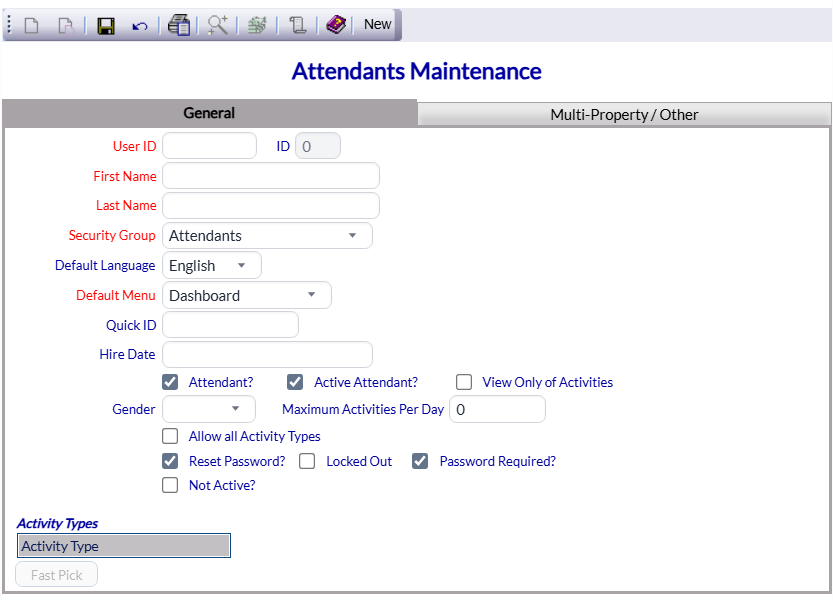
User ID: Enter the desired User ID for this attendant. This is a unique ID assigned to the individual User. It may be up to 10 characters long, alphanumeric only. Type in the desired ID.
This field is required.
ID: This field is generated automatically by Skyware when a new attendant is added to the system and cannot be altered. This field is for Internal use by Skyware Systems.
First Name: This is the first name of the attendant. Enter the name in manually.
This field is required.
Last Name: This is the last name of the attendant. Enter the name in manually.
This field is required.
Security Group: This is the security group you wish to have the attendant assigned to. The first (alphabetically) listed Security group will be shown in the field as this field cannot be left blank. Thus the "Attendant" group may be shown already. (Different security groups will have different levels of access to Skyware. Select the correct security group from the drop-down menu of available options. If the correct option is not available, please see Security Groups for help in configuring it).
Default Language: This is the language that Skyware Systems will be displayed in for the attendant. Select the default language for the user interface from the drop-down menu of available options. By default it will be English.
Default Menu: This is the Menu screen that will be displayed as the landing page after the User's log-in. Select the option desired from the drop-down menu.
This field is required.
Quick ID: This is a pin number to identify the User if the posting type requires it. This is NOT the User ID. This may be up to 10 characters long.
This field is optional. An attendant may or may not need to post charges for services rendered at the time, depending on your Property.
Hire Date: Click within the field to open the calendar option to select the correct date of hiring for this attendant.
This field is optional but recommended.
Attendant: This box may be checked or unchecked. By default, new entries have this box checked. Again, this screen is for attendants only. Thus every attendant should be marked yes (or the User will not appear on the Attendant Maintenance screen, only on the User screen subsequently, even if entered here).
Active Attendant: This box may be checked or unchecked. By default, new entries have this box checked. If this attendant is no longer available for any reason, check this box to remove them from your scheduling possibilities.
View Only of Activities: This box may be checked or unchecked. If you wish the attendant to be able to view only (not add, remove or adjust their schedule or appointments) when logged in, check this box. by default it is unchecked.
Gender: This is a drop-down menu, select one or leave blank.
Maximum Activities Per Day: Enter the maximum number of activities this attendant may be scheduled for in a day. By default it is set at 0.
Allow all Activity Types: This box may be checked or unchecked. If this attendant is capable of performing ALL your possible activity types, you can check this box. Otherwise, you will need to complete the Activity Types section below, to list any activities that this attendant is qualified to perform.
Note: To add Activity Types for an attendant you MUST first save the attendant into the system; until the attendant has been saved the Activity Types section will not be accessible.
Reset Password: This box may be checked or unchecked. By default for any new User it is checked. The first time a new User attempts to log in they will be prompted to create a password. Once the User has logged in, the box will be unchecked. If need be, the box may be checked once more to allow the User to change their password; the next time they log in they will be prompted for a new one. See Password Setting or Resetting for more details.
Locked Out: This box may be checked or unchecked. By default it is unchecked. if it is checked, the User has been locked out of Skyware due to too many invalid password attempts (7). If this is the case, someone else (a manager) will need to open the User's profile and uncheck the box, then check the reset password box to allow the User to reset the password.
Password Required: Does this User require a password to log into the system? This box may be checked or unchecked. By default it is checked. Checked, this option requires the User to supply a password at log in. For security, Password Required should ALWAYS be checked as allowing any User to access Skyware Systems without a password is a security risk to your Property.
Not Active: This box may be checked or unchecked. By default it is unchecked. Click this option to deactivate the account without deleting it. Once an account has been created, it cannot be deleted from the system.
When ready, click the Save  button to save the Attendant profile to Skyware. Activity Types may only be added to an attendant's profile once it has been saved within Skyware.
Activity Types: Adding Activity Types to the Attendant.
This section will contain the list of any activities that your Property offers that you have selected this attendant as being able to perform, if you have NOT checked the box to ALL of the available activities.
Note: For NEW attendant profiles the list of activity types may only be edited once the attendant profile has been saved within Skyware.
Use the Fast Pick button.
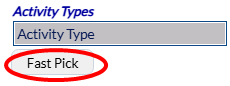
Click the gray button Fast Pick to open a pop-up window listing all the activities available to add as fast-pick options.
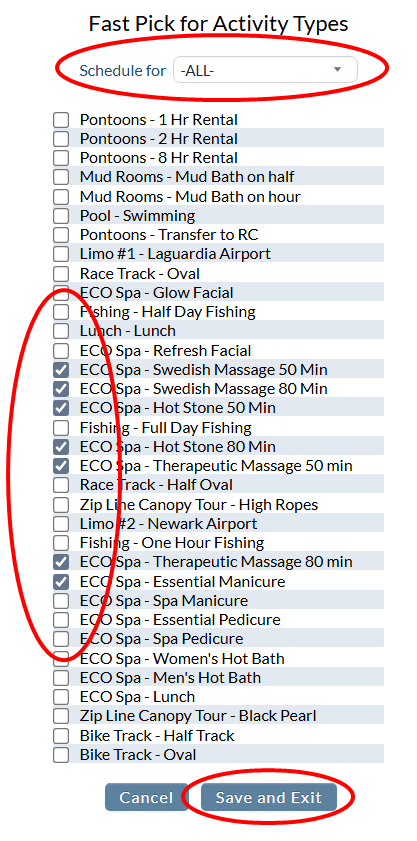
First, select the Schedule that the activity type is associated with. Use the drop down menu to select the relevant Schedule Type, or leave as -ALL-. By default the selection is set as -ALL-.
Note: This is the Schedule Type or Activity Category. For example, a Hot Stones massage. The massage is the activity type, the room in which it will take place is the activity facility and the "Spa" is the activity category or schedule type.
Check ALL activities you wish to have associated with the specific attendant, then click the button "Save and Exit" to return to the Attendants screen.
Note: The Fast Pick button allows you to add several activities at once.
The selected activity types will now be displayed in the Activity Types section.
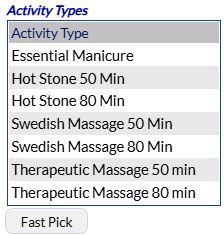
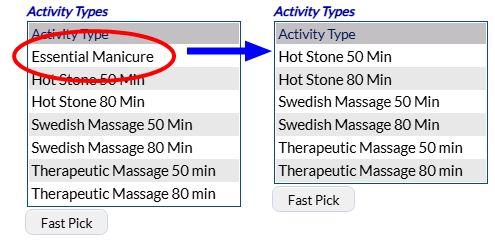
To remove an activity type, simply un-check the selected activity in the Fast Pick pop up screen, then click the button "Save and Exit" to return to the Attendants screen.
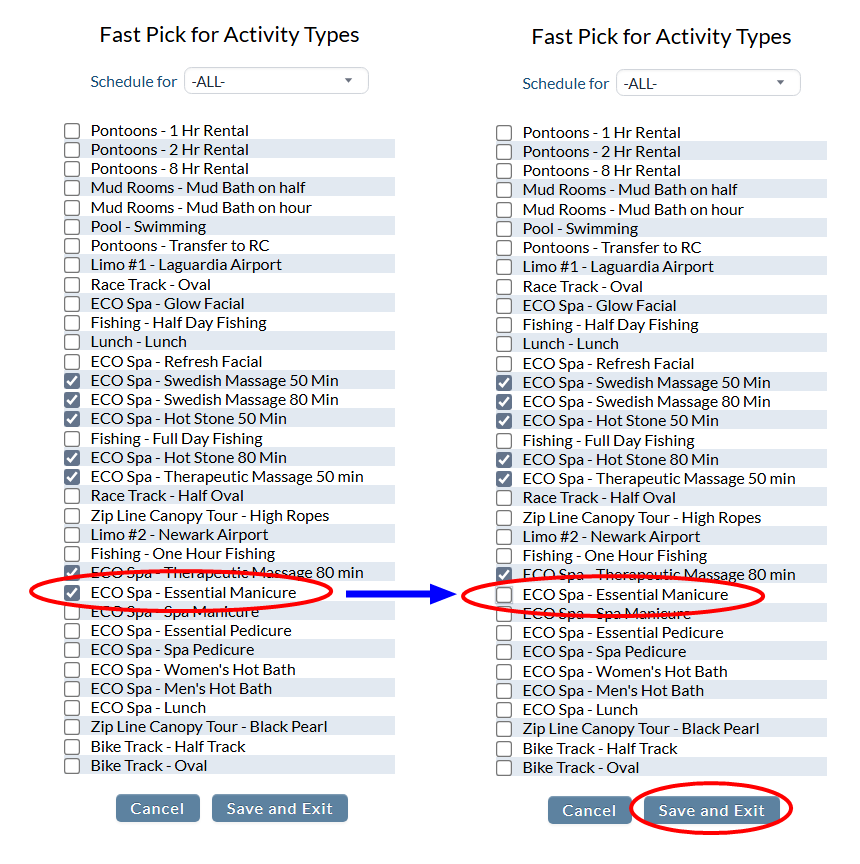
The activity type will now be removed from the Activity Type section.
When you are finished adding or editing Attendants, click the Save button to save the changes.
To view any changes made, click the Activity log  button in the local tool bar.